Elance-oDesk – Expert Evenings – #SharePoint Online


Pe 28 Noiembrie, orele 18:00 la Hotel Traian am avut plăcerea să deschid seria de evenimente Expert Evening, organizată de Elance-oDesk, filiala Iași, reprezentată de Valentin Ciacâru.

În public au fost prezenți în jur de 28-30 de participanți, un număr bun spun eu, având în vedere că era ziua de Vineri de dinaintea marelului weekend de 1 Decembrie. Mai frumos este că nu au plecat pe parcurs decât două persoane, care oricum anunțaseră de la început că nu pot rămâne mai mult de o oră. :)

Elance oDesk - Expert Evening - 2014-11-28 18.24.51

Nu știu când a trecut prima oră din prezentare. Credeam că am prea puține slide-uri, am evitat să intru în prea multe detalii, pentru a putea acoperi cât mai mult din ceea ce îmi programasem să spun/prezint dar nu am avut nici o șansă să acoper măcar 51% din plan… chiar dacă am vorbit cât am putut de repede! :)

Cei care doresc să acceseze rezursele din prezentare o pot vizualiza în iframe-ul de  mai sus. Slide-ul alb/negru este pentru partea de file-server pe care am explicat-o pe o foaie de hârtie. În ”strategia” de prezentare am programat-o să rămână pe o foaie și oamenii să acceadă spre noile instrumente de partajare a fișierelor.

La finalul prezentării în sesiunea de întrebări și discuții s-a discutat despre posibilitatea creării unui grup de lucru/comunitate, ceva, care să reunească la un loc cât mai mulți pasionați ai tehnologiei SharePoint. N-am lasat idea acolo ci încercăm să o punem în practică sub forma unui grup de agregare de resurse și content în mediul social pe Facebook sau LinkedIn. Sper să reușim.

Mulțumesc tuturor celor prezenți la eveniment și sper să fie și alte evenimente la fel de plăcute. Pentru feedback pozitiv vă rog să scrieți în comentariile de mai jos. Pentru feedback-ul negativ scrie-ți mail pe adresa: vlay.gvaeru@yhaoo.com. :)

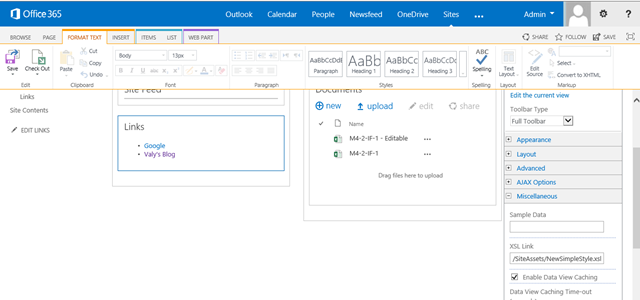
Customizing the Links SharePoint App to open links into new window using XSL Link


This article describe a simple way to format Links App web parts using XSL Link for SharePoint Server 2013 and SharePoint Online from Office 365.

Description

Into a Links app you can add new items by specifying URL, Description and Notes. By default all links stored in this lists are opened into the same windows/tab. This article purpose a new way to open links into another tab/windows by using a custom XSL file, without any programming skills or tools.

Remarks

There are many articles on the internet that are demonstrating the use of custom applications, JavaScript or programming languages. Other articles are referring to other type of links. (see References section)

Tested in SharePoint Server 2013 and SharePoint online from Office 365.

How it works


  1. Create a default Links app (Add an app, select Links, type the name example Links and press Ok).
  2. Open site contents, Site Assets, and upload the XSL file.
  3. Copy the shortcut of uploaded xsl file into your clipboard.
  4. Edit your page and insert Links App part.
  5. Check the webpart from page and select Web part Properties from Ribbon.
  6. From the right side expand Miscellaneous and paste your clipboard into the XSL Link text box and click Apply

How to add the XSL as XSL Link for Links App

Press Ok and Save the page.

XSL File

The file could be downloaded from Technet Gallery from the address:  https://gallery.technet.microsoft.com/Open-SharePoint-Links-into-76550ff1

<?xml version=”1.0″ encoding=”UTF-8″?>
<!–
#Project: Open Links in New Tab v1
#Author: Valy Greavu, MVP
#Date: 2014-11-26
#Version comment:
1:-
–>

<!– XLS Link SharePoint Definition –>
<xsl:stylesheet xmlns:x=”http://www.w3.org/2001/XMLSchema”
        xmlns:d=”http://schemas.microsoft.com/sharepoint/dsp”
        version=”1.0″
        exclude-result-prefixes=”xsl msxsl ddwrt”
        xmlns:ddwrt=”http://schemas.microsoft.com/WebParts/v2/DataView/runtime”
        xmlns:asp=”http://schemas.microsoft.com/ASPNET/20″
        xmlns:__designer=”http://schemas.microsoft.com/WebParts/v2/DataView/designer”
        xmlns:xsl=”http://www.w3.org/1999/XSL/Transform”
        xmlns:msxsl=”urn:schemas-microsoft-com:xslt”
        xmlns:SharePoint=”Microsoft.SharePoint.WebControls”
        xmlns:ddwrt2=”urn:frontpage:internal”>

    <xsl:output method=”html” indent=”no”/>
    <xsl:template match=”/” xmlns:x=”http://www.w3.org/2001/XMLSchema”>

    <!– Defining variable userd for all records from a Links list –>
    <xsl:variable name=”Rows” select=”/dsQueryResponse/Rows/Row” />
    <!– Display the list as a unsorted list. Also you can choose to create a table. –>   
    <ul>
        <xsl:for-each select=”$Rows”>
            <xsl:variable name=”LinkUrl”>
                <xsl:value-of select=”@URL”/>
            </xsl:variable>   
            <xsl:variable name=”LinkTitle”>
                <xsl:value-of select=”@URL.desc”/>   
            </xsl:variable>
            <li>
                <a href=”{$LinkUrl}” target=”_blank”>
                    <xsl:value-of select=”$LinkTitle” />
                </a>
            </li>
        </xsl:for-each>
    </ul>
    </xsl:template>

</xsl:stylesheet>   
<!– EOF –>

References

Blog la WordPress.com.

SUS ↑