Calculating Time Difference in InfoPath Form

This article describe a custom method for time difference based on a custom combo box used for hours and minutes input.

You can download the XSN file from https://1drv.ms/u/s!ApGubfWFh8Nuq5o3q77TRbTkVX634w
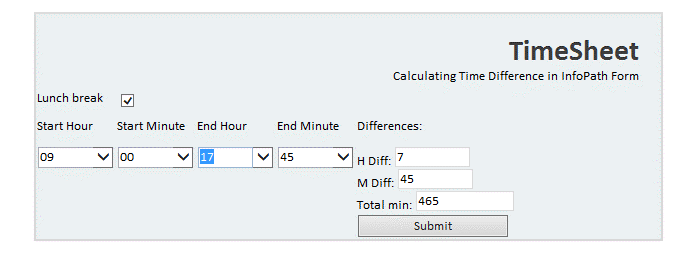
timesheet

This form is designated to calculate the time difference between end hour and minute and start hour and start minute.

The form contains a XML resource file used to populate the combo box for hours and minutes:

Structure:

<Hour>
    <HValue>9</HValue>
    <HDisplay>09</HDisplay>
    <HType>R</HType>
    <MValue>0</MValue>
    <MDisplay>00</MDisplay>
</Hour>


  • HValue – Integer from 0 to 23
  • HDisplay – Text, 00, 01 to 23
  • HType – R – Regular, ABH – After Business Hours, N – Night hours
  • MValue – Integer from 0 to 59
  • MDisplay – Text, 00, 01 to 59

Worked hours and minutes are calculated using xPath 1.0 (details in article IF-THEN-ELSE in xPath)

For H Diff (worked hours) formula is:

concat(substring(concat(substring(../my:EndH – ../my:StartH, 1, (../my:EndM – ../my:StartM >= 0) * string-length(../my:EndH – ../my:StartH)), substring(../my:EndH – ../my:StartH – 1, 1, (not(../my:EndM – ../my:StartM >= 0)) * string-length(../my:EndH – ../my:StartH – 1))), 1, (../my:EndH – ../my:StartH >= 0) * string-length(concat(substring(../my:EndH – ../my:StartH, 1, (../my:EndM – ../my:StartM >= 0) * string-length(../my:EndH – ../my:StartH)), substring(../my:EndH – ../my:StartH – 1, 1, (not(../my:EndM – ../my:StartM >= 0)) * string-length(../my:EndH – ../my:StartH – 1))))), substring(concat(substring(../my:EndH – ../my:StartH + 24, 1, (../my:EndM – ../my:StartM >= 0) * string-length(../my:EndH – ../my:StartH + 24)), substring(../my:EndH – ../my:StartH + 23, 1, (not(../my:EndM – ../my:StartM >= 0)) * string-length(../my:EndH – ../my:StartH + 23))), 1, (not(../my:EndH – ../my:StartH >= 0)) * string-length(concat(substring(../my:EndH – ../my:StartH + 24, 1, (../my:EndM – ../my:StartM >= 0) * string-length(../my:EndH – ../my:StartH + 24)), substring(../my:EndH – ../my:StartH + 23, 1, (not(../my:EndM – ../my:StartM >= 0)) * string-length(../my:EndH – ../my:StartH + 23)))))) – ../my:LunchBreak

  • LunchBreak – is 1 when is checked and 0 when is unchecked.

For number of minutes (M Diff) the formula is:

concat(substring(../my:EndM – ../my:StartM, 1, (../my:EndM – ../my:StartM >= 0) * string-length(../my:EndM – ../my:StartM)), substring(../my:EndM – ../my:StartM + 60, 1, (not(../my:EndM – ../my:StartM >= 0)) * string-length(../my:EndM – ../my:StartM + 60)))

Also, in the form is implemented a validation rules for cases when the hour is the same and start minutes are greater than end minutes.
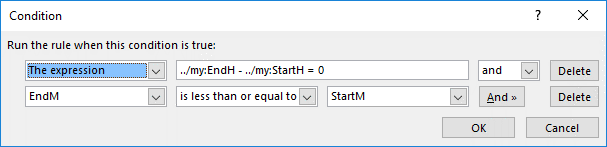
ValidationRule

This rule is used also to deactivate submit button.

Future improvements: Add AM/PM format for time differences.

Hope it helps!

Fix Microsoft #SharePoint bug in Oslo Master page

This article describes a method for solving a problem with the interface in SharePoint sites with Oslo master page layout.

Symptoms

When you are selecting an Oslo master page layout for your site (Team Site) there is an issue in displaying large column lists.

See the following picture:

OsloSimtomps

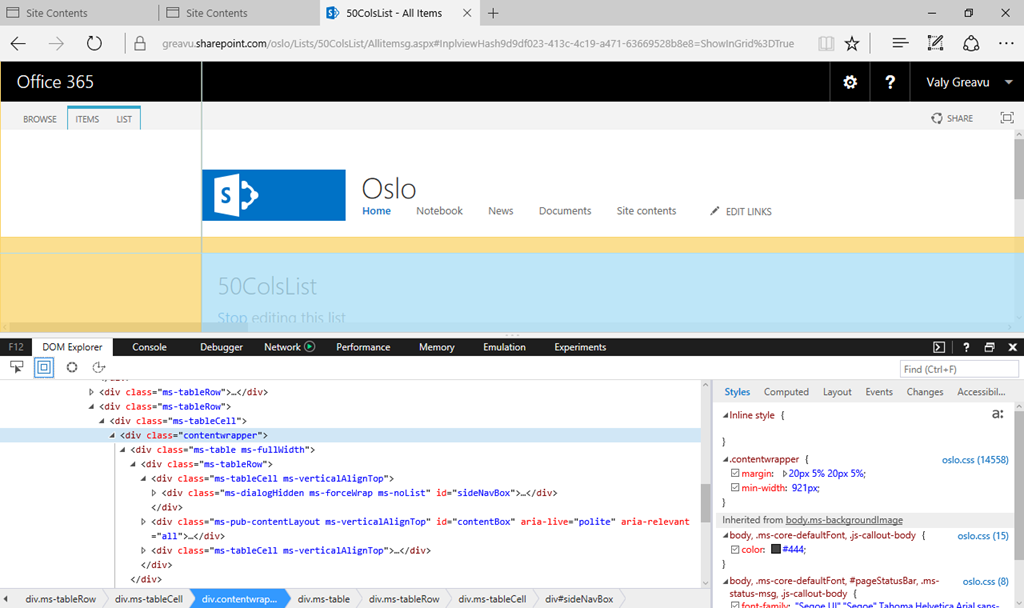
You can observe left margin. If the list from the site contains more columns the left margin is bigger.

Investigation

I use classic Console/Debugger app from my browser and I identify that there is an issue related to the CSS formatting applied to:

div id=”titleAreaBox” and to div class=”content wrapper”.

Oslo contentwrapper

You can observe in Style section, value of the margins of content wrapper are in percent’s. These percent’s that are applies here are from the width of the page, not of the screen.

Solving steps

1. In SharePoint Designer 2013, open the site and navigate to Master Pages section.

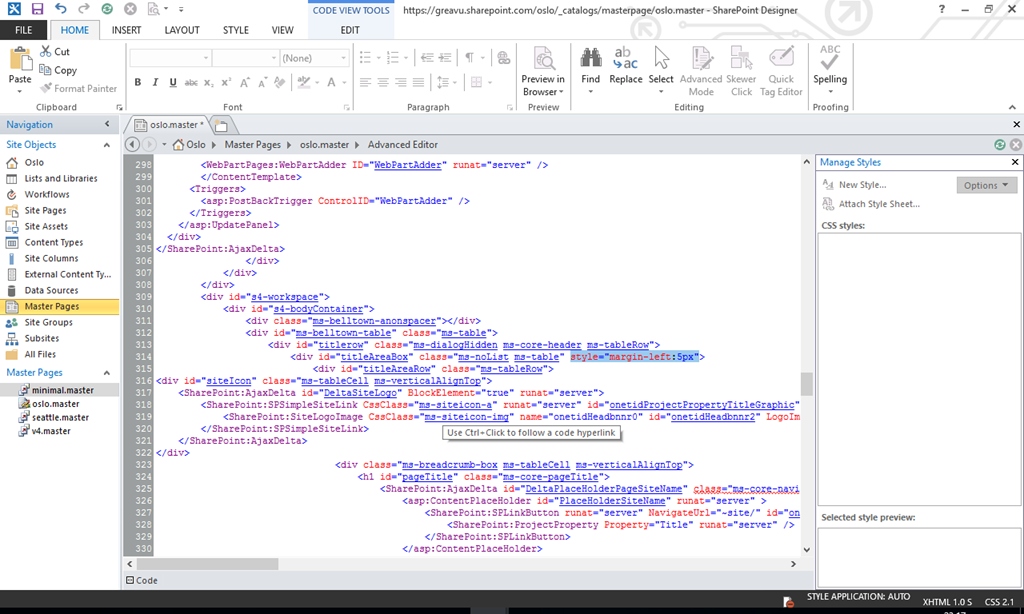
2. Open in edit mode the file oslo.master. Find the expression div id=”titleAreaBox”, edit the line and add style=”margin-left:5px”

image

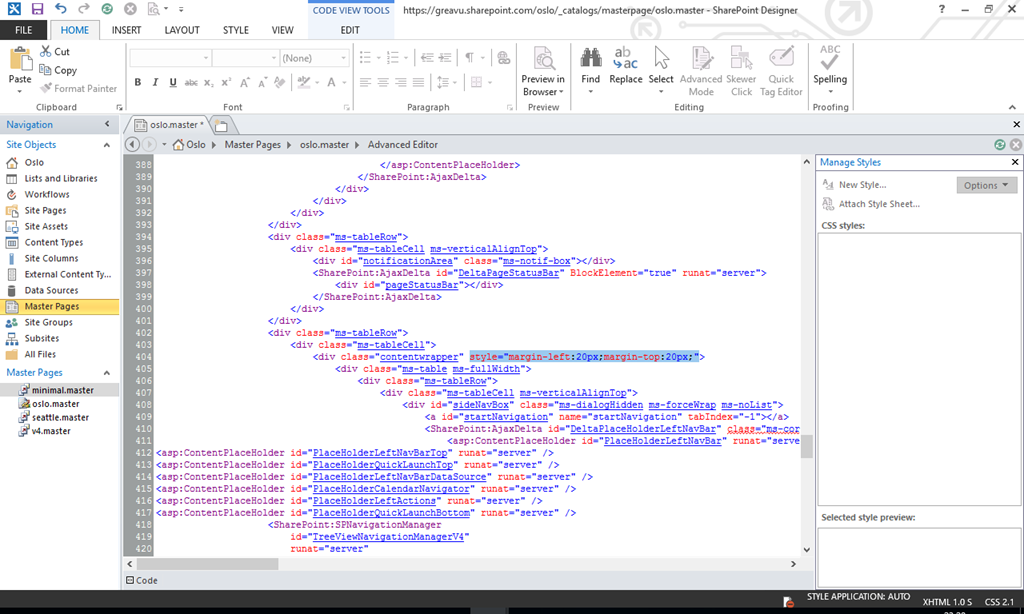
3. Find the expression div class=”contentwrapper”, edit the line and add style=”margin-left:20px;margin-top:20px;”

image

Save the page and go back to browser and refresh.

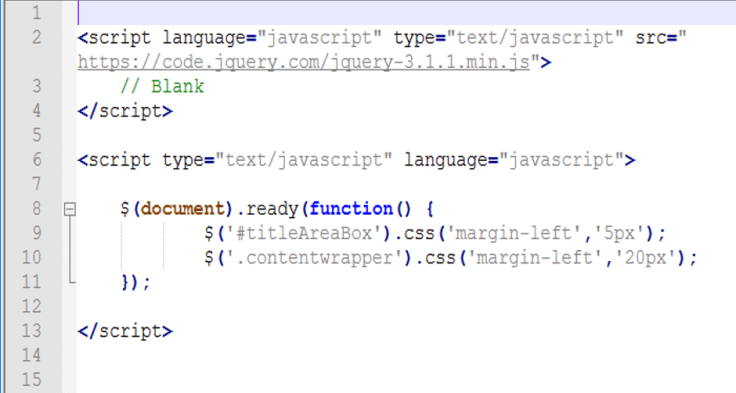
If you do not have access to SharePoint Designer, you can choose to corect the pages from a list using jQuery script added in page:

jquery-script-for-oslo-master

Hope it helps.

IF-THEN-ELSE in xPath

Există multă documentație și exemple pe Internet legate de utilizarea condițiilor IF-THEN-ELSE în formularele personalizate în InfoPath din SharePoint. De ce încă despre InfoPath? Pentru că este încă un produs suportat în versiunea de SharePoint 2016 și a fost prelungit suportul pentru InfoPath 2013. De ce xPath? Pentru că va mai rezista ceva timp.

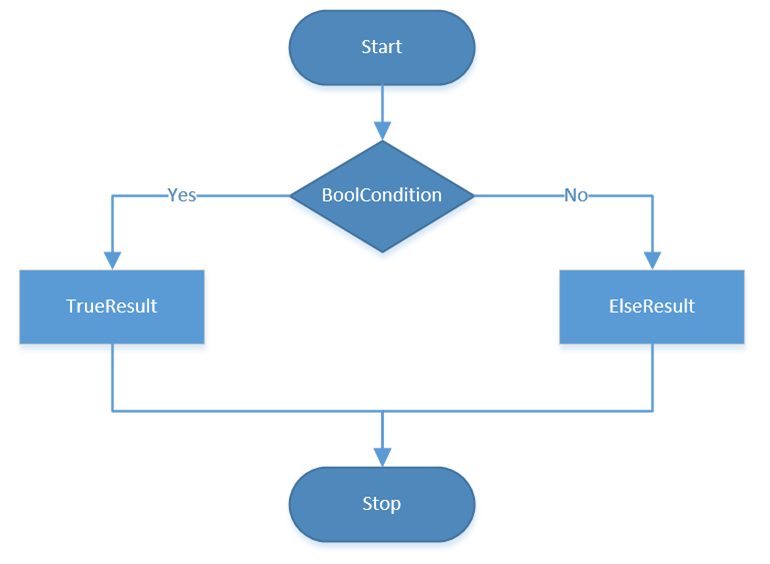
În modimage clasic în xPath 1.0, cel care poate fi folosit pe formularele InfoPath 2013, nu există o sintaxă de tip IF-THEN-ELSE dar există o adaptare a acesteia, oarecum mai complicată dar care funcționează inclusiv pentru IF-uri imbricate.

În mod simplificat sintaxa este:

concat(
substring(TrueResult, 1, (BoolCondition) * string-length(TrueResult)),
substring(ElseResult, 1, (not(BoolCondition)) * string-length(ElseResult))
)

Formula poate fi scrisă pe mai multe rânduri sau pe un singur rând caracterele Enter nefiind interpretate în execuție. O altă formă a IF-THEN-ELSE-ului este prezentată în forma:

concat(
    substring(TrueResult, 1 div BoolCondition),
    substring(ElseResult, 1 div not(BoolCondition))
    )

Din punctul meu de vedere formula în schimb nu este la fel de exactă, rezultatul pentru True fiind de multe ori altertat, mai ales când se operează cu numere.


Introducerea unei noi condiții pe ramura IF-THEN transformă formula în:

concat(
    substring(
            concat(
                substring(
                    TrueResult1
                    , 1, (BoolCondition) * string-length(
                    TrueResult1
                    )),
                substring(
                    ElseResult1
                    , 1, (not(BoolCondition)) * string-length(
                    ElseResult1
                    ))
                )
            , 1, (BoolCondition) * string-length(
            concat(
                substring(
                    TrueResult1
                    , 1, (BoolCondition) * string-length(
                    TrueResult1
                    )),
                substring(
                    ElseResult1
                    , 1, (not(BoolCondition)) * string-length(
                    ElseResult1
                    ))
                )
            )),
    substring(
            ElseResult2
            , 1, (not(BoolCondition)) * string-length(
            ElseResult2
            ))
    )

Condițiile folosesc operatorii clasici: =, >, etc. În cazul în care valoarea comparată în condiție este un număr trebuie să folosim funcția number(câmp).

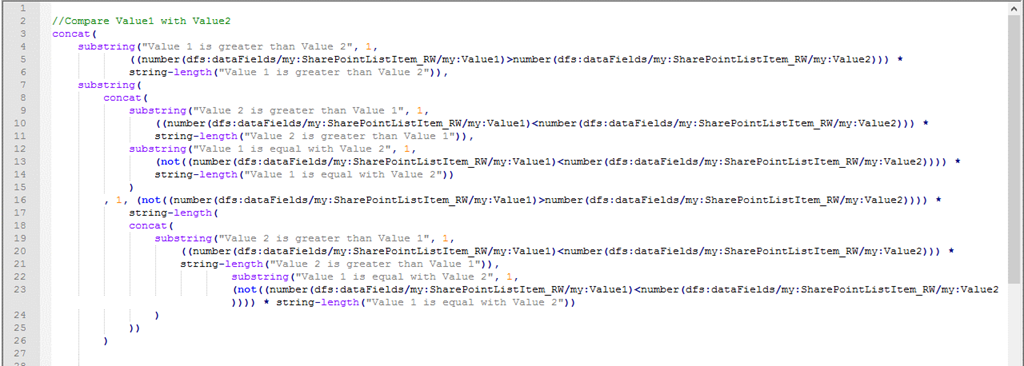
Prezentul articol este mai mult un exemplu de calculare a unui câmp dintr-un formular pe baza alegerilor sau datelor introduse de un utilizator. Practic există și alte metode de lucru, xPath fiind una din metodele foarte dificile. Astfel, dacă avem un formular prin intermediul căruia dorim să comparăm două valori, Value1 și Value2 atunci pentru a rezolva problema trebuie să folosim următoarea formulă:

image

Formularul conține două câmpuri cu numele Value1 și Value2 și un buton care determină valoarea textului afișat prin utilizarea formulei respective:

image

Pas cu pas implementarea:

1. Am creat un formular simplu în SharePoint cu cele două coloane;

2. Am personalizat formularul în InfoPath și am adăugat butonul Compare…

3. La acțiunea butonului am pus setare valoare câmp Title la formula de mai sus.

Simplu, nu? Smile

Condițiile cumulative

În IF-uri mai avem de multe ori și condiții cumulative. Pentru a specifica acest cumul de condiții trebuie să folosim operatorul AND sau OR după caz.

Formula devine în acest caz:

concat(
    substring(TrueResult, 1, (BoolCondition1 and BoolCondition2) * string-length(TrueResult)),
    substring(ElseResult, 1, (not(BoolCondition1 and BoolCondition2)) * string-length(ElseResult))
    )


Exemplu de formulă pentru compararea sumară a trei valori:

concat(
    substring(„Ambele valori sunt mai mari”, 1,
        ((number(dfs:dataFields/my:SharePointListItem_RW/my:Value1)>number(dfs:dataFields/my:SharePointListItem_RW/my:Value3))
        and (number(dfs:dataFields/my:SharePointListItem_RW/my:Value2)>number(dfs:dataFields/my:SharePointListItem_RW/my:Value3))) *
        string-length(„Ambele valori sunt mai mari”)),
    substring(„Una din valori este mai mica”, 1,
        (not((number(dfs:dataFields/my:SharePointListItem_RW/my:Value1)>number(dfs:dataFields/my:SharePointListItem_RW/my:Value3))
        and (number(dfs:dataFields/my:SharePointListItem_RW/my:Value2)>number(dfs:dataFields/my:SharePointListItem_RW/my:Value3)))) *
        string-length(„Una din valori este mai mica”))
    )

Sper să vă fie util!

Blog la WordPress.com.

SUS ↑