Installing SharePoint Fundation 2010 on a Domain Controller

First at all, you must know that this is a hazardous method. It is stronglly recomended to do not install SharePoint into a Domain Controller because of performance, security and others.

If you really want to do that, you can use this method but, only on a test environment and for your own risk.

Please read these posts before installing:

My deployment:

First step is to install SPF 2010 using a config file. You cannot install standalone version of SPF 2010 but you can install Farm version.

Download SPF 2010 and extract instalation kit into a distinct folder.

D:\SharePointFiles\SharePoint.exe /extract:D:\SPF2010

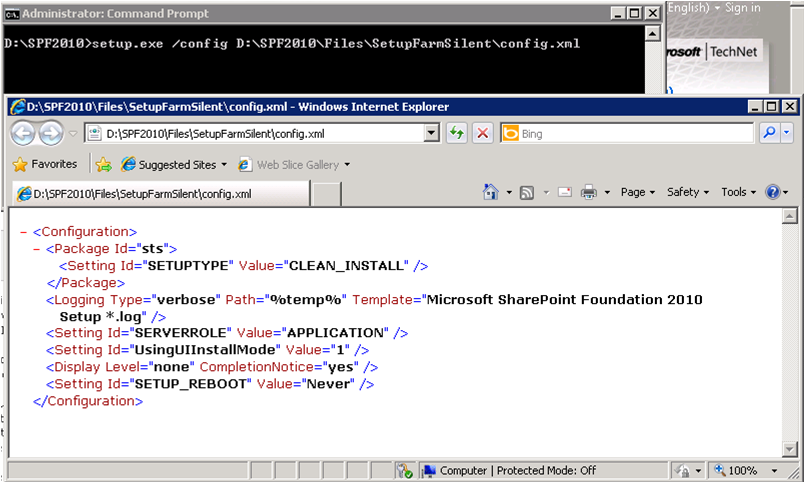
Identify and edit config.xml file, using notepad or other XML Editor. You can find the file in %extractedpath%\Files\SetupFarmSilent\

(Run CMD in Admin Mode)

After that run setup.exe using /config parameter and full path to config.xml file as paramater.

D:\SPF2010\setup.exe /config D:\SPF2010\Files\SetupFarmSilent\config.xml

image

Second step:

After install, DO NOT RUN configuration Wizard. It is better to create first the database using psconfig tool.

Navigate to C:\Program Files\Common Files\Microsoft Shared\Web Server Extensions\14\BIN

psconfig -cmd configdb -create -server srv-01\SharePoint -database SPF_Config_DB -user SharePoint\Admin.sql -password Abc*123 -passphrase C0mpl3x-P@ss0rd  -admincontentdatabase SPF_Admin_Content_Db

After that, run SharePoint 2010 Products Configuration Wizard.

I was trying to install SPF2010 integrated with Active Directory, by using –addomain  and –adorgunit parameters but I wasn’t able to create a new content for a SharePoint site.

Run Central Admin, but DO NOT USE Configuration Wizards because it is possible to alter Default site from IIS.

Remember: Use this methond only for test servers.

Internship Microsoft Danemarca

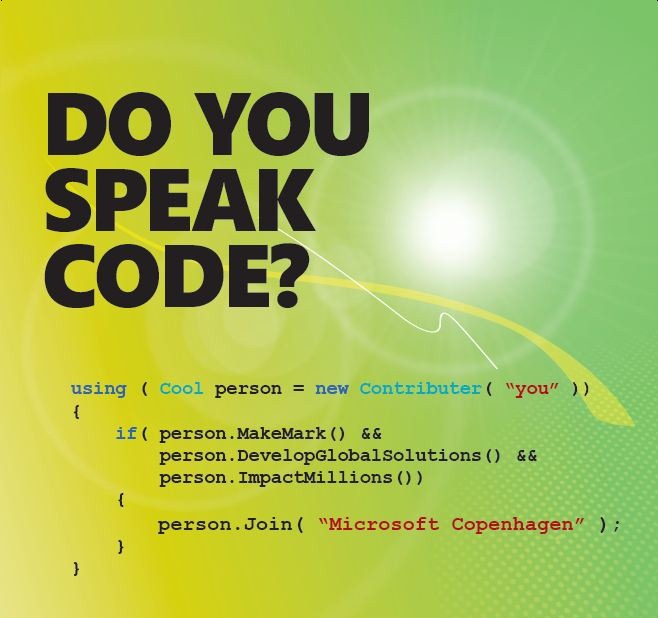
DoYouSpeakCode

Microsoft Development Center Copenhagen (MDCC) is Microsoft’s biggest development center in Europe and is located just north of Copenhagen in Denmark. Around 650 employees are working at MDCC, including a significant number of highly specialized software developers recruited from all over the world. In 2008 and 1009, MDCC was rated the "Best Place to Work in Europe” by the Great Place to Work Institute (more info). The staff counts more than 40 different nationalities making MDCC one of the most international companies in Denmark.
What we offer
We offer internships at Microsoft in Copenhagen of 9 to 12 months. At the end, you might get the opportunity of a full-time job with us, or you might choose to get back to school (if you interrupted your studies), or continue your career as you like. In any case, Microsoft on your CV can be a good advantage.
Requirements
Software development expertise, particularly within C#, C++ or similar object oriented programming languages, Strong technical and analytical skills, Excellent problem solving and design skills. Ability to work independently – and in teams. An excellent command of written and spoken English.
We are looking for engineers with a strong background in object oriented development. Experience business applications or ERP solutions is a plus. Working toward an academic degree within computer science, engineering, mathematics, physics. 
Good academic results are a plus (make sure to mention them in your CV), but they are not mandatory.
Responsibilities
Write and review technical requirements and design documents. Plan, design, and write code for automated tests of features within the Core ERP, presentation tier or Dynamics platform. Create and use test tools and processes to both increase effectiveness in the daily work and assure quality of the product.
Collaborate with other engineers to ensure all feature areas achieve the desired high level of innovation and quality our customers demand.
Working Conditions
You will gain valuable experience working on a world-class product development team and learn what it’s like to work at Microsoft. Each trainee will work on real projects that contribute to the success of Dynamics Products which is used by over 1 million customers. You will work on the Microsoft Development Center Copenhagen (MDCC) campus. The work environment is truly international with over 40 different nationalities working under the same roof. Each trainee will be provided desk and PC and a mentor to help guide them through their work experience. The campus is situated on a wooded, park-like site, complete with sports fields and walking trails just north of Copenhagen and easily accessible by train or bus. Free beverages and fruits are available for you the whole day. Breakfast, warm lunch, are part of the package offered to all employees. You will have access to the latest technologies and the best hardware equipment. Sports events and other entertainment is regularly organized at discounted prices.
How to apply
If you are a student in the last 2 years, a fresh graduate or a master’s at AC, send your CV to bogdana.botez@microsoft.com. The sooner you apply the more chances you get to be processed in time to get an interview invitation. We will travel to Bucharest on 23rd and 24th of April. If you are selected, you will have the chance to meet us at a "per invitation" interview in Bucharest, with the travel expenses covered by Microsoft.

For more information on Microsoft Development Center Copenhagen, you are welcome to check our website, http://www.mdcc.dk.

Active Directory, Exchange si PowerShell


PowerShell este un instrument din ce în ce mai utilizat. Scriptul următor poate fi folosit pentru crearea userilor în Active Directory şi trimiterea unui e-mail inţial de informare despre anumite resurse de access.

Scriptul trebuie salvat şi rulat cu drepturi administrative pe serverul de e-mail (Exchange 2007) care ar trebui să aibă instalat și PowerShell-ul. Din punct de vedere managerial, NU este corect ca parola utilizatorului să fie trimisă prin e-mail. Alte comentarii în cadrul scriptului.

O varianta în VBS poate fi găsită la adresa: http://searchwindevelopment.techtarget.com/tip/0,289483,sid8_gci1086268,00.html dar se foloseste doar pentru crearea contului şi a mail box-ului nu şi trimiterea de e-mail. Consider utilizarea PowerShell mult mai simplă şi mai uşor de utilizat.

Copiaţi scriptul de mai jos în Notepad sau alt editor de text şi schimbaţi valorile constantelor. Lansarea scriptului: ./psADAccCreate-MailSend.ps1 <prenume> <nume>

***** psADAccCreate-MailSend.ps1 ***** 
#  Creare cont de utilizator in AD,           * 
#  adresa mail in Exchange 2007 si            * 
#  trimitere email                            * 
#                                             *    
#  Creat de: Valy Greavu                      * 
#  09/11/2008                                 * 
# ************************************** 

# Scriptul trebuie executat pe serverul de e-mail cu rol de mailbox 
# Preluarea parametrilor de rulare: Nume, Prenume, Parola 

param ([string] $Prenume, [string] $Nume) 

# Definirea constantelor: 
$Domain = "feaa.uaic.ro" #Trebuie specificat numele complet de DNS
$ou = $Domain + "/Utilizatori/Studenti" #Este specificata toata calea incepind de la numele domeniului 
$MailDB = "MAIL\StudentStore\StudentsDB" #Se modifica in functie de numele serverului si a bazelor de date specifice. 
$SenderAdmin = "valy.greavu@feaa.uaic.ro" #Adresa de mail a adminului. 
$SMTPServer = "mail.feaa.uaic.ro" 

# Verificarea datelor introduse 
if ($Prenume -eq "") 
  { 
    write-host "Prenumele nu a fost introdus!" -foregroundcolor Red 
    write-host "Exemplu utilizare: ./psADAccCreate-MailSend.ps1 <prenume> <nume>" -foregroundcolor Red    
  } 
elseif ($Nume -eq "") 
  { 
    write-host "Numele nu a fost introdus!" -foregroundcolor Red 
    write-host "Exemplu utilizare: ./psADAccCreate-MailSend.ps1 <prenume> <nume>" -foregroundcolor Red    
  } 
else 
  { 
    write-host "Incepe crearea contului pentru:" $Prenume $Nume -foregroundcolor Green    
# Crearea contului si a adresei de mail 
    # Parola trebuie introdusa in aceasta etapa 
    # Parola nu poate fi trecuta in script pentru ca este incompatibila cu System.Security.SecureString 
    # ResetPasswordOnNextLogon trebuie sa fie $false pentru ca utilizatorul sa se poata conecta la sistemul de mail inainte de a isi schimba parola. 
    # Daca acesta se va loga pentru prima data pe un calculator din domeniu atunci va trebui parametrul trebuie setat pe $true 

    New-Mailbox -Name "$Prenume $Nume" -Alias $Prenume"."$Nume -OrganizationalUnit $ou -UserPrincipalName $Prenume"."$Nume"@"$Domain -SamAccountName $Prenume"."$Nume -FirstName $Prenume -LastName $Nume -ResetPasswordOnNextLogon $false -Database $MailDB 
# Comanda New-Mailbox trebuie scrisă pe o singură linie
    write-host "Am creat contul:" $Prenume $Nume -foregroundcolor Green    

# Compunere e-mail initial 
    $Destinatar = $Prenume+"."+$Nume+"@"+$Domain 
    $Subiect = "Bun venit in reteaua :"+$Domain+"!" 
# Corp mesaj scris linie cu linie. 
    # Combinatia `r`n face trecerea pe rindul urmator in continutul mailului. 
    $bodyln1 = "`r`Salut "+$Prenume + "`r`n" 
    $bodyln2 = "`r`Te informam ca adresa ta de e-mail: " + $Destinatar + " poate fi accesata prin Outlook sau prin OWA la adresa: https://"+$SMTPServer+"/owa. `r`n" 
    $bodyln3 = "Te rugam sa respecti politicile de securitate si regulamentele afisate in sistemul de Intranet accesibil la adresa: http://Intranet/. `r`n"
    $bodyln4 = "`r`Pentru a schimba parola de acces in retea te rugam sa folosesti combinatia de taste Ctrl+Alt+Del sau legatura de pe prima pagina din Intranet.`r`n" 
    $bodyln5 = "Pentru orice fel de probleme va rugam sa va adresati departamentului de Help Desk la adresa de mail: support@"+$Domain+".`r`n" 
    $bodyln6 = "Cu stima,`r`n <em>Departamentul IT</em>.`r`n" 

    $body = $bodyln1 + $bodyln2 + $bodyln3 +$bodyln4 +$bodyln5 + $bodyln6 

    $msg = new-object System.Net.Mail.MailMessage $SenderAdmin, $Destinatar, $Subiect, $body 

# Trimitere email 
    $client = new-object System.Net.Mail.SmtpClient $SMTPServer 
    $client.credentials = [System.Net.CredentialCache]::DefaultNetworkCredentials 
    $client.Send($msg) 
    write-host "Am trimis mail:"  -foregroundcolor Yellow 
    write-host "Terminat!"  -foregroundcolor Green 
  } 

# **** EOF() ****

.csharpcode, .csharpcode pre
{
font-size: small;
color: black;
font-family: consolas, „Courier New”, courier, monospace;
background-color: #ffffff;
/*white-space: pre;*/
}
.csharpcode pre { margin: 0em; }
.csharpcode .rem { color: #008000; }
.csharpcode .kwrd { color: #0000ff; }
.csharpcode .str { color: #006080; }
.csharpcode .op { color: #0000c0; }
.csharpcode .preproc { color: #cc6633; }
.csharpcode .asp { background-color: #ffff00; }
.csharpcode .html { color: #800000; }
.csharpcode .attr { color: #ff0000; }
.csharpcode .alt
{
background-color: #f4f4f4;
width: 100%;
margin: 0em;
}
.csharpcode .lnum { color: #606060; }


Firul de execuţie:

1. Lansare PowerShell cu drepturi administrative şi navigare în directorul de scripturi:

2. Rulare comanda în mod eronat:

3. Rulare comanda corect:

4. Mail initial:

Trebuie retinut ca marcajele HTML sunt interpretate ca si text dar adresele HTTP, HTTPS sunt interpretate corect.


Acest articol este o republicare din vechiul meu blog.

Blog la WordPress.com.

SUS ↑